Purchase Order User Guide
The Purchase Order module supports a controlled procurement process from the first purchase request to supplier quotation comparison, approval, ordering, delivery confirmation, and invoice handover to Finance.
It is an independent centraQuest module with its own purchase-order workflow. A purchase order is stored as a structured business object with requester, approvers, supplier quotations, item rows, attachments, budget information, workflow history, and later invoice references.

Purchase Order supports several process variants. The main difference is whether the order requires delivery confirmation and whether the invoice is handled as a normal bill, prepayment, or partial-payment flow.
Purpose
Purchase Order is used when a purchase should be reviewed before the supplier invoice arrives. It helps users answer these questions:
- What is being purchased?
- Who requested the purchase?
- Which department or cost center is responsible?
- Which suppliers submitted quotations?
- Which supplier was selected and why?
- Who reviewed and approved the purchase?
- Has the order been placed?
- Has delivery been confirmed, if required?
- Has the related supplier invoice been submitted to Finance?
The module is designed for procurement cases where traceability matters more than simply uploading a document. It is especially useful when several supplier quotations must be compared, when approval is required before ordering, or when Finance needs a clean reference between the order and the later invoice.
Main Roles
The available buttons and editable fields depend on the user, roles, current workflow state, and client configuration.
Typical roles are:
- Requestor: creates the purchase order and describes the purchasing reason.
- Division Head: reviews the request from the business department.
- Head of Finance: checks finance-related aspects and budget impact.
- Managing Director: approves higher-level or final purchase decisions.
- Ordering user: places the order and follows up on delivery and invoice handover.
- Finance: receives the related invoice and continues invoice processing.
- Administrator: can usually see and manage more objects depending on permission configuration.
The concrete role names may differ by installation. In the standard profile the visible workflow fields are Requestor, Division Head, Head of Finance, Managing Director, and Ordering.
Opening Purchase Orders
Purchase Orders are opened from the Purchase Order module if it is enabled for the client and the user has the required role or permission.
The dashboard URL is:
/invoice/purchase_order/dashboard
The detail URL of an individual purchase order is:
/invoice/purchase_order/details?id=<object-id>
From the dashboard users can create a new purchase order, open existing purchase orders, search, filter, switch views, and continue workflow tasks.
Dashboard
The Purchase Order dashboard is a worklist for purchase orders. It is optimized for operational follow-up and shows purchase orders according to user permissions, selected client, filters, and state.
Common dashboard information includes:
- current workflow status,
- purchase order title,
- PO number,
- preferred vendor,
- order type,
- payment type,
- amount and currency,
- requested arrival,
- ordering date,
- active assignee,
- deputy indicators where applicable.
The dashboard supports table and compact/mobile-oriented views. On mobile devices the compact view is used by default.
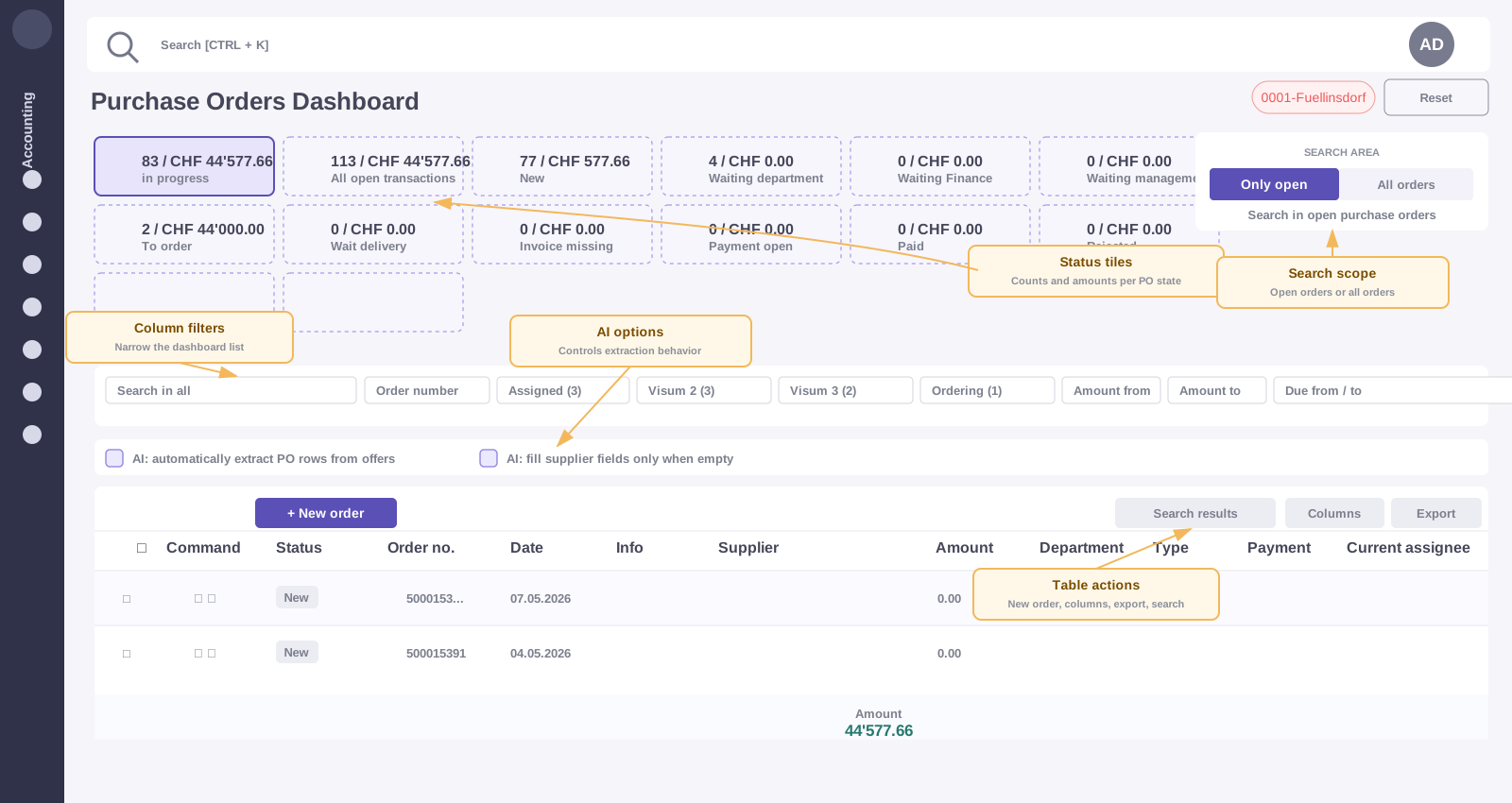
The dashboard combines status tiles, search scope, column filters, AI extraction options, table actions, and the purchase order worklist.
Dashboard Filters
The dashboard contains quick filters for common working situations. The concrete tiles depend on configuration, but the code supports filters such as:
- My drafts: purchase orders that are still being prepared.
- In progress: purchase orders in review or approval.
- Ordering and delivery: purchase orders that have been approved and are waiting for ordering, delivery, or follow-up.
- Invoice open: purchase orders where the related Finance invoice step is still missing.
- Problems: purchase orders with rejected, invalid, error, or blocked follow-up situations.
- Wait on delivery: delivery-type purchase orders where delivery has not yet been confirmed.
- Invoice missing: purchase orders where the process expects an invoice but no invoice relation exists.

The Search Area switch controls the search scope. Only open limits the worklist to active purchase orders that still need follow-up. All purchase orders includes completed, closed, or otherwise non-open purchase orders where the user has permission.
Users can additionally use text search and column filters, for example supplier, document number, assignees, amount range, or date range.

The table combines filters, visible business fields, row actions, column selection, and export. Typical visible columns include status, PO number, date, last information, supplier, currency, amount, ordering department, PO type, payment type, current assignee, and client accounting. The column menu controls which fields are displayed; the export menu can export the result list, for example as copy, CSV, or Excel output.
Creating a Purchase Order
A new purchase order is created from the Purchase Order dashboard with New Purchase Order.
The purchase order form requires the most important header data before the workflow can be started. Required fields may be adapted by configuration, but the standard profile expects:
- requester,
- purchase order date,
- title,
- purchase order type,
- ordering department,
- reason for purchasing,
- preferred vendor before final decision,
- client accounting.
The PO number is system-controlled and read-only once assigned.
Header Fields
The header describes the business request.
Important fields are:
- Requestor: user who requested the purchase.
- PO Date: date of the purchase order.
- Title: short business title of the purchase.
- PO Number: generated or assigned purchase-order number.
- PO Type: determines whether delivery confirmation is relevant. Standard values include
no deliveryanddelivery. - Payment Type: describes how the supplier will be paid. Standard values include
Bill,Prepayed, andPartial Pay. - Ordering department: department or accounting area responsible for the purchase.
- Order by: intended order channel, for example mail, phone, post office, or other.
- Requested Arrival: expected arrival or delivery date.
- Reason for purchasing: business justification. This is a central field for approvers.
The form may also contain a Post-it field for short remarks.
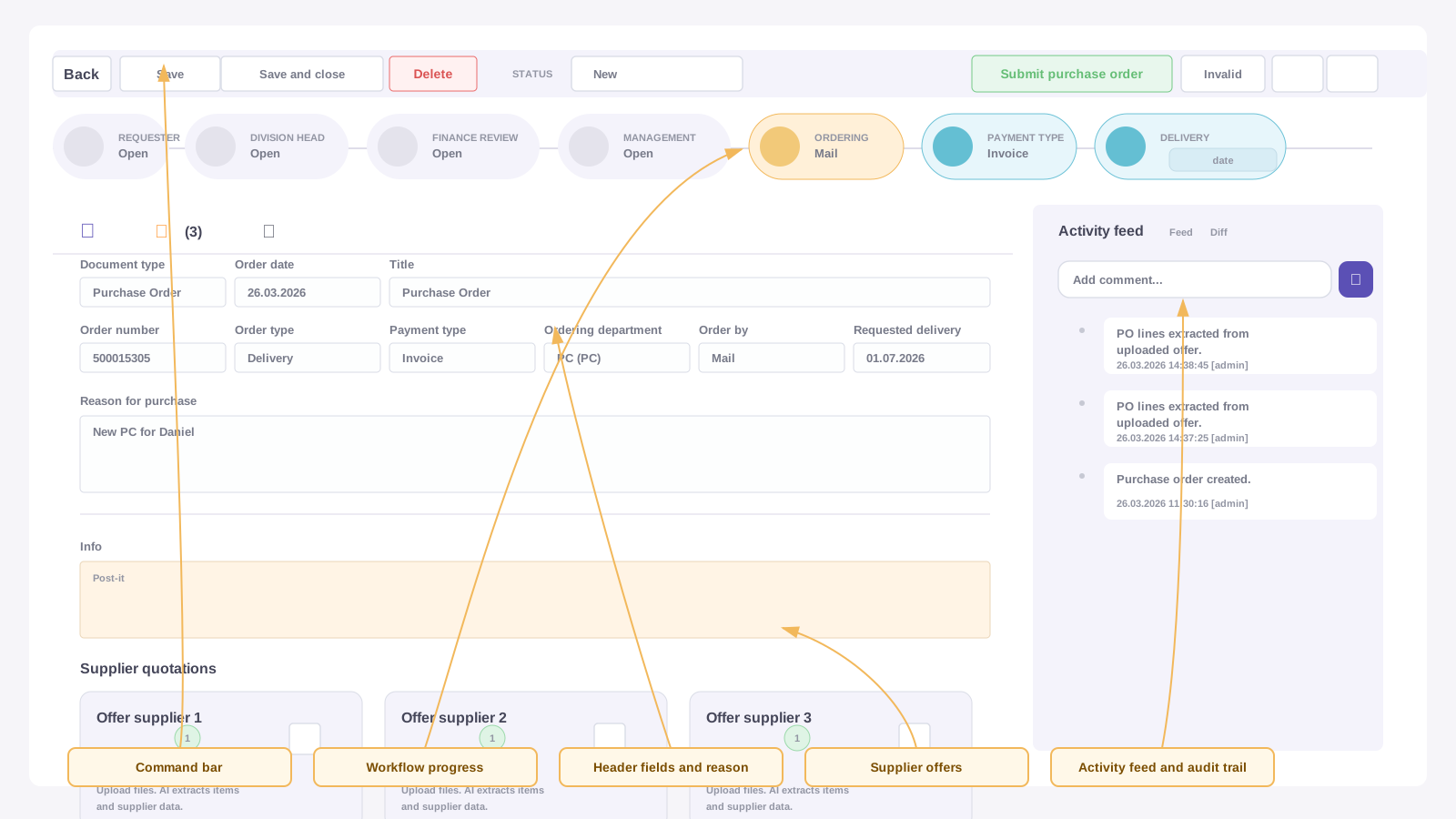
The order form combines command actions, workflow progress, header fields, purchasing reason, supplier quotations, attachments, and the activity feed.
Supplier Quotations
The standard form supports up to three supplier quotation areas:
- Vendor 1
- Vendor 2
- Vendor 3
Each vendor area contains supplier and quotation data:
- company,
- address number,
- street,
- ZIP / city,
- country,
- phone,
- email,
- terms,
- description,
- currency,
- currency rate,
- total,
- total in CHF.
The address number connects the recognized or selected supplier to the address master data. If the address number is empty, the supplier was not matched to a master-data record or was entered manually without a stored reference.
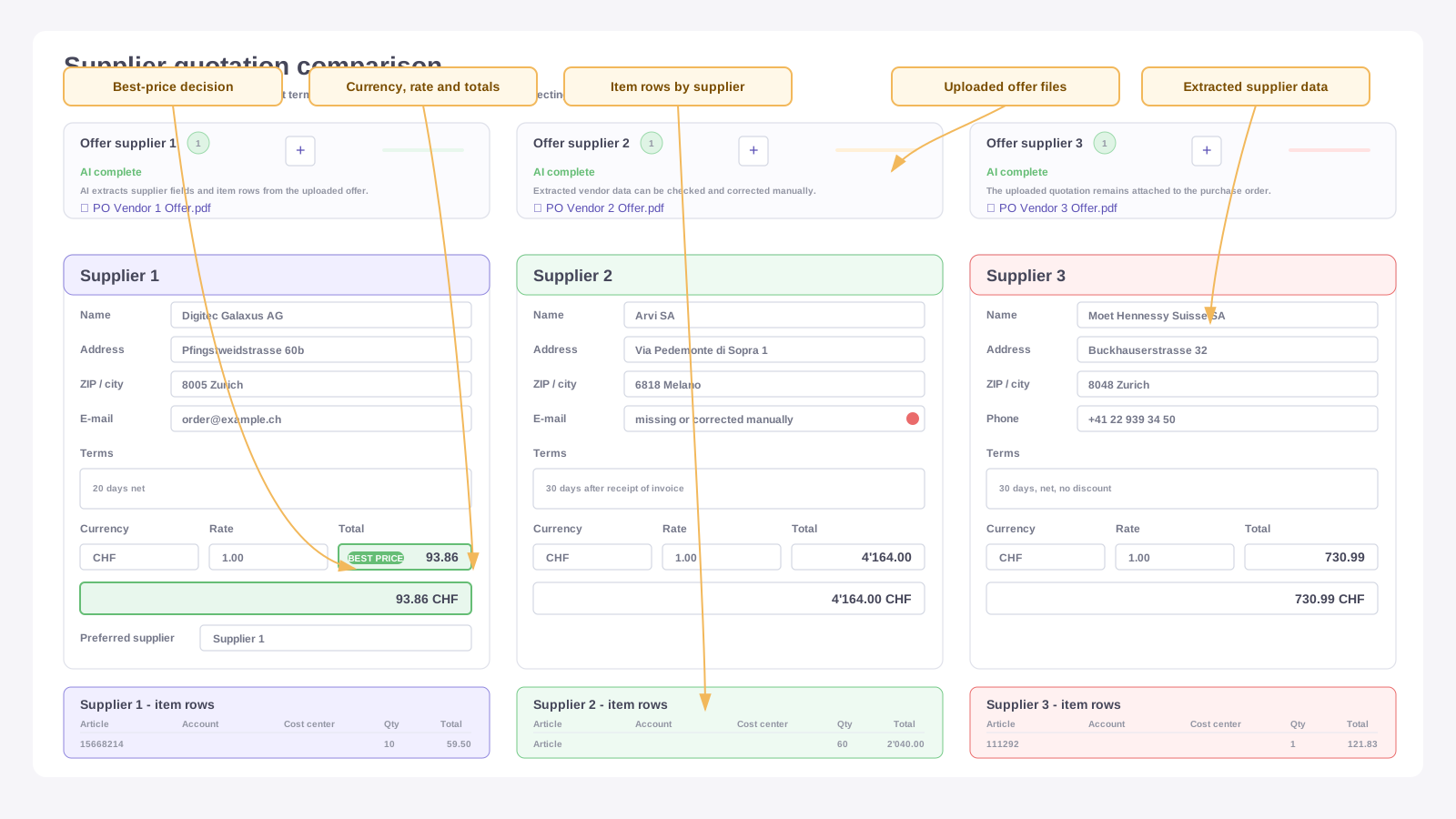
The supplier comparison view lets users validate the extracted address data, payment terms, currency, exchange rate, totals, best-price marker, and item rows for each vendor.
Selecting or Saving Supplier Addresses
Supplier fields can be filled manually or through value assistance from supplier master data. When a supplier is selected from master data, related fields such as address number, company, street, city, country, phone, and email can be copied into the vendor area.
Each vendor address number field has a Save vendor address action. Use it only after checking that the supplier information is correct. This action can create or update supplier address data depending on backend behavior and permissions.
Recommended checks before saving:
- The supplier name is correct.
- The address belongs to the correct legal entity.
- ZIP, city, and country are plausible.
- Phone and email are business contacts, not unrelated text extracted from the offer.
- The address number, if present, belongs to the intended supplier.
Uploading Supplier Offers
The purchase order form contains dedicated upload areas for supplier offers. An uploaded offer is stored as an attachment and linked to the purchase order.
When automatic extraction is enabled, upload can start background analysis for the related vendor slot. The analysis tries to read supplier data, commercial conditions, currency, totals, and item rows from the offer.
Supported documents depend on installation and extraction services. PDF files are the most common format. Scanned PDFs may require OCR, which can take longer and can produce less reliable text.

Each supplier offer card shows the uploaded file, extraction status, upload action, and the AI reanalysis action for the affected supplier slot.
AI-Assisted Offer Extraction
Purchase Order can extract offer data automatically from uploaded supplier documents.
The extraction can fill:
- purchase order title,
- purchase order type,
- payment type,
- supplier name and address,
- email and phone,
- delivery time,
- commercial terms,
- offer description,
- currency,
- offer total,
- freight information,
- prepayment indicators,
- item rows.
The first vendor offer is allowed to propose header fields such as title, PO type, and payment type. Later offers are treated as alternative quotations and should not overwrite the purchase order title or type.
AI extraction is a work aid, not an approval. Users must check the result before continuing the workflow.
| Infographic needed: AI extraction flow |
|---|
| Simple diagram showing uploaded offer, text/OCR extraction, supplier master-data matching, vendor-field update, item-row extraction, user review. |
Reanalysis
If extraction was incomplete or incorrect, the vendor offer can be analyzed again.
For a full reanalysis of one vendor, existing fields and rows for that vendor can be cleared before the new extraction result is written. Rows and data of the other vendor slots are kept.
Reanalysis is useful when:
- the wrong document was uploaded first,
- OCR produced better text after a retry,
- supplier data was missing,
- item rows were incomplete,
- the vendor quotation changed.
Before reanalysis, users should be aware that manually corrected data in the affected vendor slot may be replaced or cleared depending on the reanalysis mode.
Item Rows
Purchase Order item rows are stored separately from the header. The form displays them below the vendor offer areas, grouped by vendor slot.
Typical item row fields are:
- vendor slot,
- article number,
- description,
- account,
- cost center,
- quantity,
- unit,
- unit price,
- tax or surcharge,
- net amount,
- gross amount,
- comments.
Rows can be extracted from offers or entered manually. Account and cost center fields use client-specific master data where available.
The system keeps a minimum visible row structure so users can enter rows even when extraction did not find any. When the form is saved, row data is serialized and stored as PO row objects.

The item-row grid groups rows by supplier and lets users review or correct article data, account assignment, cost center, quantity, unit price, line total, and supplier total.
Comparing Vendors
The purchase order form shows the three vendor areas side by side. This allows users to compare:
- supplier identity,
- commercial terms,
- delivery information,
- total amount,
- currency,
- CHF equivalent,
- item rows,
- freight conditions,
- payment or prepayment indicators.
Users should select the preferred vendor explicitly in the Preferred Vendor field. This decision is important for approval, ordering, and later invoice matching.
Budget Information
If the user has access to budget information and the client configuration supports it, the detail form can show a budget summary. The budget block helps users and approvers understand the financial impact of the purchase.

Depending on configuration, the budget summary can show:
- selected account or cost center context,
- current budget,
- consumed amount,
- remaining budget,
- warning colors when limits are approached or exceeded.
Budget information should be used as decision support. If budget data is missing or outdated, the approval decision should be verified with Finance.
Attachments
Purchase Orders support additional attachments. The attachment area allows drag-and-drop upload and shows linked files with preview, detail, download, and delete actions.

Attachments can include:
- supplier offers,
- clarifications,
- drawings,
- specifications,
- approval-relevant documents,
- order confirmations,
- correspondence.
Deleting an attachment removes the linked document or relation depending on the situation. Users should only delete files when they are sure the document is not required for traceability.
Feed and History
The detail page contains a feed with recent audit trail entries, comments, workflow events, and process information. It helps users understand what happened to the purchase order.

Typical feed entries include:
- purchase order created,
- workflow started,
- reviewed,
- approved,
- ordered,
- invoice submitted to Finance,
- marked as paid,
- rejected,
- set to invalid,
- automatic extraction result.
The feed contains both system entries and manual employee comments. System entries document what happened automatically or through workflow actions, for example who created the purchase order, started extraction, sent the order mail, or submitted the invoice to Finance. Comments are user-written notes that add context, questions, or decisions for other employees.
Users can use the feed to understand why an object is in its current state, who performed the last relevant action, and which clarification comments were added during processing.
Workflow States
The standard purchase order profile supports these lifecycle states:
| State | Meaning |
|---|---|
00 imported | Object was imported or created in an initial technical state. |
01 new | Draft or newly created purchase order. |
02 in review | Waiting for departmental review. |
03 in approval | Waiting for Finance or approval step. |
05 controlling | Waiting for controlling or management-related check. |
04 approved | Purchase order approved. |
04 approved controlling | Approved after controlling-related step. |
07 ordered | Order has been placed. |
08 ready to pay | Related invoice is ready for payment handling. |
10 ready for export | Ready for ERP export or downstream processing. |
97 rejected | Rejected in workflow or invoice follow-up. |
98 invalid | Marked as invalid. |
99 error | Technical or processing error. |
The exact transitions and button labels can be configured per installation.
Standard Workflow
A typical process looks like this:
- The requestor creates the purchase order.
- Supplier quotations are uploaded or entered.
- AI extraction fills supplier and row data where enabled.
- The requestor reviews and corrects the data.
- The preferred vendor is selected.
- The purchase order is submitted.
- The division head reviews the request.
- Finance checks budget, accounting, and commercial plausibility.
- Management approves if required.
- The ordering user places the order.
- Delivery is confirmed if the PO type requires delivery.
- The related invoice is uploaded and submitted to Finance.
- Finance continues invoice processing, payment, or export.
Not every installation uses every step. Smaller setups may use fewer approval stages.
Process Variants
The high-level workflow branches depending on delivery and payment type. These variants are useful for training and support because they show where Finance receives the invoice and whether delivery confirmation is part of the process.
No Delivery or Delivery Decision

Use this variant when the purchase does not require a separate delivery confirmation, or when the delivery decision is handled as an explicit check before the invoice handover.
Normal Bill

Use this variant when the supplier invoice is expected after the order has been placed and delivery has been confirmed.
Prepayment

Use this variant when Finance receives a prepayment invoice before the delivery is completed. The delivery follow-up remains visible after the payment-related handover.
Proforma Partial Payment

Use this variant when an initial proforma or partial-payment invoice is sent to Finance and a final invoice is expected later.

The workflow state controls which action is available, who is the active assignee, and whether the purchase order is still editable, waiting for follow-up, ready for downstream processing, or closed as an exception.
Acting as an Assignee
The active assignee depends on the current workflow state:
- In review, the first assignee is active.
- In approval, the second assignee is active; if missing, the first assignee can be used.
- In controlling, the third assignee is active; fallback can use previous assignees.
- In ordered or follow-up states, the ordering assignee is relevant.
If deputy handling is configured, the dashboard can show deputy indicators and include objects assigned to represented users.
Ordering
After approval, the order can be placed. The order channel is stored in Order by and may be mail, phone, post office, or other.
The ordered state records that the selected purchase should now be executed with the preferred vendor. The exact ordering action can depend on the implementation, for example generating an order email, recording the order date, or moving the object into the ordered follow-up state.
Before ordering, users should verify:
- the preferred vendor is correct,
- the amount and currency are correct,
- delivery requirements are clear,
- payment type is correct,
- supplier email and contact data are correct,
- required approvals are complete.
Order Types
The order channel is stored in Order by. The standard profile supports these values:
| Order type | Meaning |
|---|---|
Mail | The order is sent to the preferred supplier by e-mail from the PO mail dialog. |
Manual | The order is placed outside the system, for example verbally, by phone, or in another purchasing tool. |
AI | Reserved for automated or assisted ordering scenarios, depending on installation. |
Abacus | Reserved for ERP-driven ordering or Abacus integration scenarios, depending on installation. |
Availability of buttons and follow-up behavior can be configured per installation. The e-mail dialog requires the order type to be Mail.
Ordering by E-Mail
When Order by is set to Mail, the ordering user can open the purchase order mail dialog. The dialog prepares an e-mail for the preferred supplier and uses the e-mail address from the selected supplier slot.

The recipient is prefilled from the preferred supplier:
- Vendor 1 uses
cq_po_vendor1_email, - Vendor 2 uses
cq_po_vendor2_email, - Vendor 3 uses
cq_po_vendor3_email.
The preferred supplier is taken from Preferred Vendor. If no supplier e-mail is available, the user must complete or correct the supplier data before sending.
Mail Templates
Purchase order mail templates are stored as cq_email_template objects in the configured template folder. The default folder is $config$email_template; the display name defaults to E-mail templates. The folder and default subject/body can be configured under config['invoice']['purchase_order_mail'].
The dialog allows users to select, create, update, or delete templates. A selected template fills the subject and message body. If no template is selected, the default subject and body from configuration are used.
Default subject:
Purchase order <%po_number%>
Default body:
<p>Dear Sir or Madam</p>
<p>Please find attached our purchase order request.</p>
<p>Best regards<br><%requester%></p>
Attachments and Audit Trail
The dialog lets the user select the offer attachment for the preferred vendor. During sending, this offer is attached to the outgoing e-mail.
After successful sending, centraQuest creates an .eml file named like Purchase order mail <po_number>.eml, stores it as a PO attachment with document type Purchase order mail, links it to the purchase order, and writes an audit trail entry. The purchase order is moved to 07 ordered.
Mail Variables
Variables can be used in the subject and body with the syntax <%variable_name%>.
| Variable | Value |
|---|---|
<%po_number%> | PO number from cq_document_no, cq_accounting_int_ref, object name, or object id. |
<%po_title%> | Purchase order title or object name. |
<%vendor%> | Company name of the preferred vendor, or fallback label such as Vendor 1. |
<%requester%> | Requestor from cq_po_requestor, object creator, or current user. |
<%client_accounting%> | Accounting client from cq_client_accounting. |
Delivery Confirmation
Purchase orders with a delivery-type PO may require delivery confirmation before the invoice can be submitted to Finance.
When delivery confirmation is required, the follow-up action bar shows a delivery step. Users can confirm delivery and set the delivery date. If the delivery date is not set manually, the UI can default to the current date when the confirmation switch is used.
For purchase orders that do not require delivery, the invoice upload step can be available without delivery confirmation.

After the delivery has been confirmed with Delivered, the user can use Submit invoice to Finance to upload the supplier invoice. After the invoice has been uploaded, Finance is informed by e-mail that the invoice can be paid.
Invoice Handover to Finance
After ordering, the related supplier invoice can be uploaded from the purchase order detail page. The Finance invoice dropzone accepts PDF and image files and is shown as Submit invoice to Finance in the follow-up area.
Depending on payment type and process configuration, the module can use different invoice contexts:
- normal finance invoice,
- prepayment invoice,
- final invoice.
For partial or prepayment flows, the process can contain more than one invoice step. For example:
- prepayment invoice,
- delivery confirmation,
- final invoice.
After upload, the file is stored as an invoice attachment, linked to the purchase order, and the PO status is updated according to the configured process.
Payment Types
The standard payment types influence follow-up behavior:
- Bill: normal invoice process. The invoice is expected after ordering or delivery.
- Prepayed: prepayment-related process. An invoice may be needed before delivery.
- Partial Pay: split process with prepayment and final invoice.
- Paid: used only when the document clearly indicates that the amount has already been paid; availability depends on configuration.
Users should choose the payment type carefully because it affects which follow-up steps are expected.
Search and Table Work
The dashboard supports operational search and filtering. Users can search by supplier, document number, assignee, amount range, and date range where the corresponding filter inputs are enabled.
In the table, users can typically:
- open a purchase order,
- mark or select rows,
- use context actions,
- see status badges,
- identify overdue or due-soon ordering dates,
- identify active assignees,
- switch between open and completed views depending on configuration.
Permissions and Visibility
Users only see purchase orders allowed by their roles, object permissions, workflow assignment, deputy assignment, or administrative rights.
Visibility can depend on:
- client accounting,
- object ACL,
- requester,
- creator,
- active assignee,
- deputy relation,
- finance or accounting roles,
- administrator roles,
- configured dashboard filters.
If a user cannot see an expected purchase order, first check client selection, filter state, role membership, and whether the user is assigned to the current workflow step.
| Infographic needed: Visibility and permissions |
|---|
| Compact diagram showing how client accounting, roles, object ACL, requester/creator, assignee, deputy relation, and dashboard filters determine visibility. |
User Checklist Before Submission
Before submitting a purchase order, check:
- The title describes the purchase clearly.
- The requester is correct.
- The ordering department is correct.
- The reason for purchasing is understandable.
- At least one supplier quotation is entered or uploaded.
- Supplier address data is plausible.
- The preferred vendor is selected.
- Amounts and currencies are correct.
- Item rows are complete enough for review.
- The payment type is correct.
- Required attachments are present.
User Checklist Before Approval
Before approving, check:
- The purchase is justified.
- The selected supplier is plausible.
- The amount matches the quotation.
- The currency and CHF total are plausible.
- Budget information was reviewed where available.
- The payment type and delivery requirements are correct.
- The order should be placed through the selected channel.
- Any deviations or risks are documented in the feed or comments.
User Checklist Before Ordering
Before placing the order, check:
- Approval is complete.
- The preferred vendor and supplier email are correct.
- The order type and requested arrival date are correct.
- The supplier terms are acceptable.
- The selected offer is the intended one.
- The later invoice path is clear, especially for prepayment or partial payment.
Common Problems
No purchase order is visible
Check whether the correct client is selected, whether filters hide the object, and whether the user has the required role, object permission, assignment, or deputy relation.
The form is read-only
The current workflow state may lock editing, or the user may not be the active assignee. Some fields can remain editable for specific roles while the rest of the form is locked.
AI extraction found no rows
The document may contain too little machine-readable text, the PDF may be scanned, or the table layout may be difficult to parse. Try reanalysis or enter missing rows manually.
The wrong supplier was matched
Check the address number and supplier fields. If the address number belongs to the wrong supplier, correct the vendor area before saving the address or continuing.
Currency or total is wrong
Check the supplier quotation. AI extraction prefers explicit document totals and tries to detect currencies such as CHF, EUR, USD, and GBP. If the document contains several totals, manual correction may be required.
Invoice upload is disabled
The PO may not be in an ordered follow-up state, delivery confirmation may still be required, or the current user may not be allowed to operate the follow-up step.
Delivery confirmation cannot be saved
Check network/session state, object permissions, and whether the purchase order is in a follow-up state where delivery confirmation is allowed.
Workflow button is missing
The button may be hidden because the object is in the wrong state, the user is not the active assignee, required fields are missing, or the client workflow configuration disables the action.
Best Practices
- Use clear, specific titles.
- Keep one supplier quotation per vendor slot.
- Review AI-extracted data before saving or submitting.
- Do not save supplier master data from uncertain OCR results.
- Select the preferred vendor explicitly.
- Keep item rows clean enough for Finance and budget checks.
- Use the feed for explanations that approvers need later.
- Confirm delivery only when goods or services were actually received.
- Upload the supplier invoice through the PO detail page so the relation is preserved.
- For partial payment or prepayment, verify the expected invoice sequence before upload.
Data Reference for Users
The most important user-facing data areas are:
| Area | Typical fields |
|---|---|
| Header | requester, PO date, title, PO number, PO type, payment type, department, reason |
| Workflow | division head, head of finance, managing director, ordering user, status |
| Vendor 1-3 | company, address number, address, contact, terms, description, currency, total |
| Decision | preferred vendor, ordering date, delivery date |
| Amount | currency, gross total, CHF totals |
| Rows | article number, description, account, cost center, quantity, unit price, net, gross |
| Attachments | offers, additional documents, order confirmations, invoice files |
| Feed | comments, workflow events, extraction information, warnings |
Purchase to Pay
Purchase to Pay connects procurement and payment. Purchase Order controls the purchasing side; the later supplier invoice creates the bridge to Invoice or Finance. When an invoice is uploaded from the PO detail page, the system creates a relation between the purchase order and the uploaded invoice attachment or invoice object.
Invoice processing can then use this reference for traceability and, depending on configuration, for accounting or approval context.
If a supplier invoice arrives independently and contains a PO number, the Invoice process can try to find the matching purchase order. If a matching PO is found in the same client, the invoice can be linked and accounting information may be reused. Cross-client matches are intentionally not linked automatically.
Summary
Purchase Order is the controlled purchasing workflow in centraQuest. Users create a PO, collect supplier quotations, let the system assist with extraction, compare vendors, select a preferred supplier, run approval, place the order, confirm delivery if required, and hand over the related invoice to Finance.
The module is strongest when users keep supplier data, item rows, decisions, and comments clean. The result is a traceable procurement case that remains connected from request to approval and invoice processing.