Invoice: Dashboard
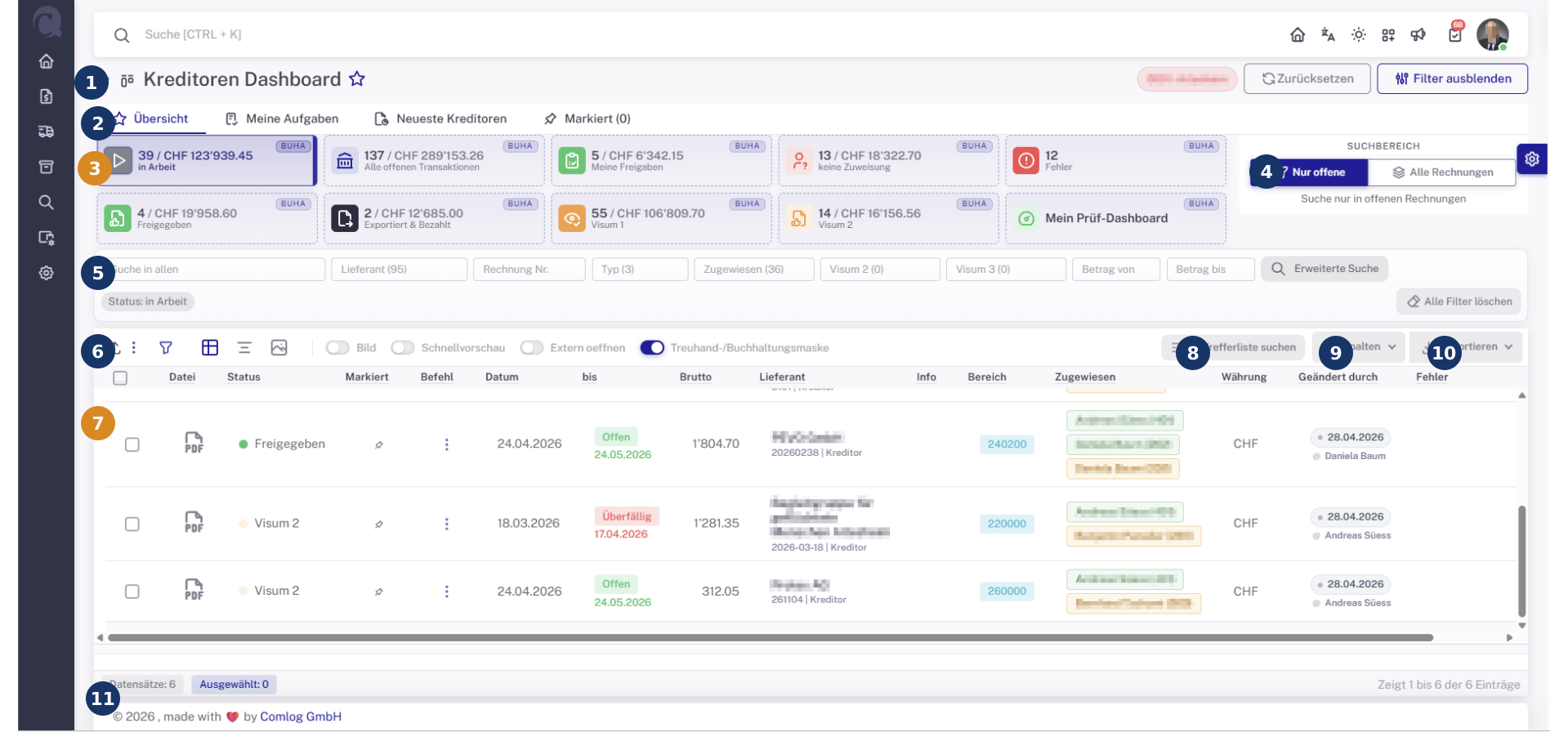
The Invoice dashboard is the central entry point for daily invoice work. It shows invoices by status, responsibility, client, due date, errors, and other criteria.
Purpose
The dashboard answers operational questions:
- Which invoices are new?
- Which invoices are waiting for review or approval?
- Which invoices have errors?
- Which invoices are overdue?
- Which invoices are exported or paid?
- Which tasks belong to me personally?
- Which tasks belong to my group or accounting team?
Dashboard Legend
| No. | Area | Function |
|---|---|---|
| 1 | Header | Shows the current workspace, for example the creditor dashboard. Navigation and actions allow users to go back, set favorites, or use global functions. |
| 2 | Tabs | Switch between views such as overview, my tasks, latest creditors, or marked invoices. |
| 3 | Status tiles | Show count and amount per status. Clicking a tile filters the result list. |
| 4 | Search scope | Controls whether only open invoices or historical invoices are searched. |
| 5 | Filter bar | Filters by text, supplier, invoice number, type, assignment, approval level, amount, or other fields. |
| 6 | View toolbar | Provides upload/import, filter, table, preview, external-open, and mask-switching actions. |
| 7 | Result list | Shows invoices with status, due date, amount, supplier, area, responsibility, currency, and change information. |
| 8 | Search in result list | Searches within the currently loaded result list without changing dashboard filters. |
| 9 | Columns | Controls visible table columns. |
| 10 | Export | Exports the current list or selected data for analysis or follow-up checks. |
| 11 | Status line | Shows record count, selection status, and the visible result range. |
Visible areas and tiles can differ by role, client, and configuration.
Typical Tiles
| Tile | Meaning |
|---|---|
| New or in work | Invoices that still need review, completion, or processing. |
| My approvals | Invoices where the current user is expected to review or approve. |
| No assignment | Invoices without clear responsibility. These should be checked quickly. |
| Errors | Invoices with technical or business errors. |
| In review | Invoices currently being reviewed. |
| In approval | Invoices waiting for approval. |
| Approved | Invoices that have been approved. |
| Exported / paid | Invoices transferred to ERP, payment process, or completion. |
| Overdue | Invoices or tasks past their due date. |
Typical Use
- Select a relevant tile, such as My approvals or Errors.
- Add filters if needed, such as supplier, client, or invoice number.
- Open the invoice from the result list.
- Check preview, metadata, accounting rows, comments, and attachments.
- Correct, approve, forward, or return the invoice for clarification.
- After the action, verify that status and responsibility changed as expected.
Personal Work vs. Team Work
Not every invoice in the dashboard is a personal task.
| View | Meaning |
|---|---|
| Personal tasks | The user is directly expected to act. |
| Group tasks | A role or group is responsible; several users may be able to act. |
| Accounting work | Invoices need completion, accounting assignment, correction, or export preparation. |
| Error lists | Invoices need follow-up by support, administration, or accounting. |
Why an Invoice May Be Missing
If an expected invoice does not appear, check:
- Is the correct client selected?
- Is a filter active?
- Is the search limited to open work instead of history?
- Does the user have the required role?
- Is the invoice assigned to another user or group?
- Is the invoice in a status hidden by this view?
- Has import processing finished?
Working with Lists
The result list is designed for repeated work. Users should configure columns, filters, and search so the list supports the current task.
Examples:
- Accounting filters by errors or missing accounting assignments.
- Approvers filter by My approvals.
- Controlling filters by cost center, area, or amount.
- Support searches by invoice number, object ID, or supplier.
Exporting from the Dashboard
List exports support analysis, follow-up checks, and support cases. The export usually contains the currently visible or filtered list.
Before exporting, check:
- Are the right filters active?
- Are the relevant columns visible?
- Does the list contain open or historical data?
- May the exported file be shared outside centraQuest?