Invoice: Review and Approval
In Review and Approval, users work on individual invoices in detail. The dialog combines invoice data, original document, workflow status, comments, warnings, errors, and approval actions in one workspace.
Users check recognized header data and amounts, complete missing information, compare the document, clarify open issues, and perform the next process step.
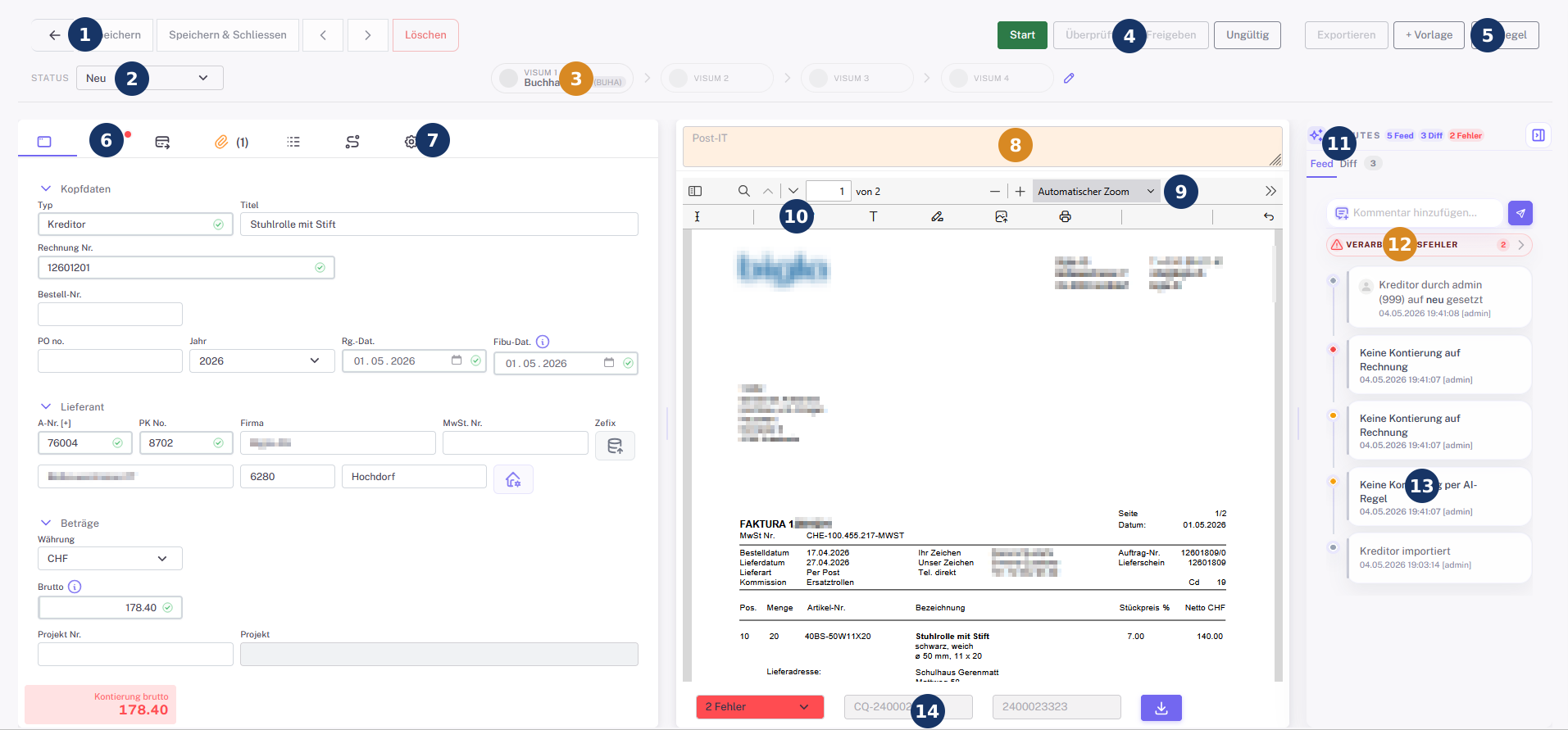
Detail Dialog Legend
| No. | Area | Function |
|---|---|---|
| 1 | Main actions | Save, save and close, navigate between records, and delete. |
| 2 | Status | Shows the current invoice status. The status controls available actions and mandatory checks. |
| 3 | Approval bar | Shows current and possible approval levels. |
| 4 | Process actions | Starts business steps such as Start, Reviewed, Approve, Invalid, or Export. |
| 5 | Additional actions | Opens supporting functions such as templates or AI rules. |
| 6 | Tabs | Switch between header data, accounting, tasks, attachments, relations, and other areas. |
| 7 | Header and master data | Contains invoice type, title, invoice number, date, supplier, address, currency, and amount. |
| 8 | Notes | Allows internal notes about the invoice. |
| 9 | PDF toolbar | Provides navigation, zoom, display, mark-up, print, and other document functions. |
| 10 | Document preview | Shows the original invoice document. |
| 11 | Activity area | Contains feed, differences, notes, and errors. |
| 12 | Errors and warnings | Shows missing values, rule deviations, or technical errors. |
| 13 | History and comments | Documents changes, automated actions, and user comments. |
| 14 | Document actions | Provides download and document-specific actions. |
Visible buttons, tabs, and mandatory fields can differ by client, role, approval authority, status, and configuration.
Process Overview

The creditor workflow combines invoice intake, review, approval, accounting, export, and archiving into a traceable process.
Typical Flow
- Open the invoice from the dashboard or task list.
- Compare the original document with recognized header data.
- Check supplier, invoice number, date, amount, and currency.
- Check accounting assignment and mandatory fields.
- Review attachments, comments, feed, and error messages.
- Correct values or ask for clarification if needed.
- Forward, approve, reject, or return the invoice for correction.
- After the action, verify that status and responsibility changed as expected.
Review vs. Approval
Review and approval can be separate steps.
| Step | Meaning |
|---|---|
| Review | Business or accounting check of the invoice. |
| Approval | Formal approval by a responsible person or role. |
| Accounting | Bookkeeping allocation of the invoice. |
| Export | Transfer to ERP, accounting, or payment process. |
Depending on the organization, one person may perform several steps or only be responsible for one specific step.
Responsibilities
An invoice can be assigned to a user or group. Invoice installations often support several responsibility fields, such as first approval, second approval, or further approval levels.
Responsibilities can come from:
- AI rules,
- orders,
- purchase orders,
- accounting references,
- creditor master data,
- workflow matrix,
- manual assignment,
- customer-specific rules.
If an invoice does not appear for the expected user, check client, status, assignment, role, object permission, and possible substitution.
Questions and Corrections
If information is missing or unclear, the invoice should not be approved without review.
Possible actions:
- add a comment,
- return the invoice to accounting,
- forward the invoice to the responsible person,
- complete missing accounting data,
- request supplier or master-data clarification,
- mark the invoice as invalid if it should not be processed.
Good comments describe exactly what is missing or why a decision was made.
Why a Button Is Missing
An expected button can be missing or disabled when:
- the invoice is in the wrong status,
- the user is not responsible,
- write permission is missing,
- mandatory fields are missing,
- accounting assignment is invalid,
- client or role does not match,
- the workflow expects another next step,
- the invoice is already completed.
If the invoice is visible but cannot be approved, the cause is usually permission, workflow, or validation rather than display.
Substitution
Depending on configuration, substitutes can receive notifications, see tasks, or perform actions.
Important points:
- Substitution must be valid today.
- The substitute user must be active.
- Client and permissions must match.
- Not every installation allows approval by substitutes.
- The audit trail should show the actual acting user.
If a substitute can see an invoice but cannot approve it, write permission or workflow permission is often missing.
Audit Trail and Feed
Workflow actions, automated rules, comments, warnings, and status changes are documented in the feed or audit trail.
This is important for:
- traceability,
- audit,
- support,
- approvals,
- export control,
- error analysis.
If it is unclear why an invoice is in a certain status, check feed, workflow history, and audit trail first.
Typical Special Cases
| Situation | What to check |
|---|---|
| Invoice stays new | Supplier, client, first approver, accounting assignment, or auto-approval rule. |
| Invoice cannot be approved | Status, responsibility, mandatory fields, accounting assignment, and permission. |
| Invoice is in error status | Error area, feed, and processing logs. |
| Wrong person is responsible | AI rule, workflow matrix, accounting reference, or master data. |
| Approval happened but invoice remains open | Next approval level, export status, or follow-up task. |